New Membership
Are you taking out membership for the first time? Follow these steps to select the appropriate membership type and make your payment.
-
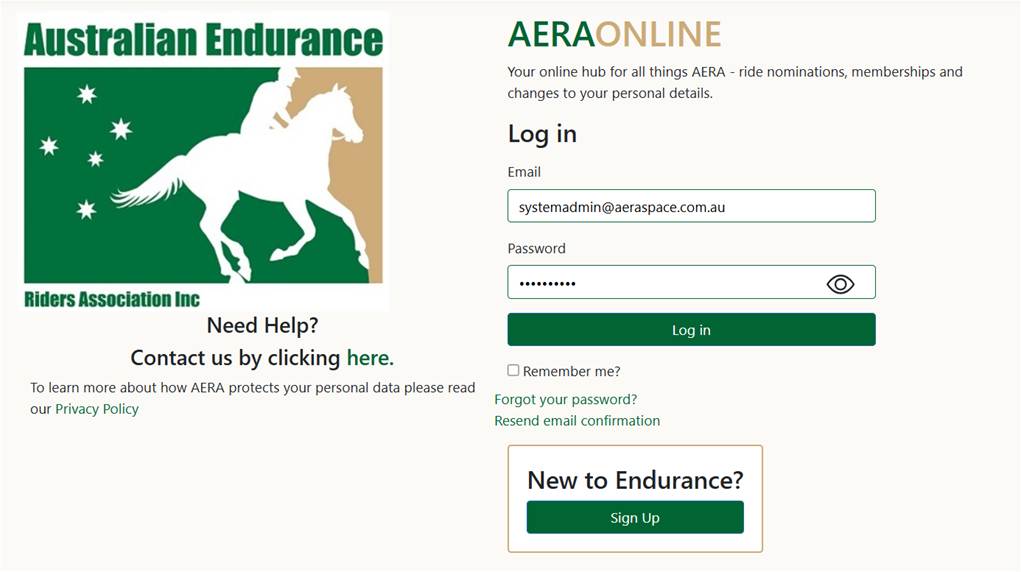
Go to the AERA Online Home Page.
-
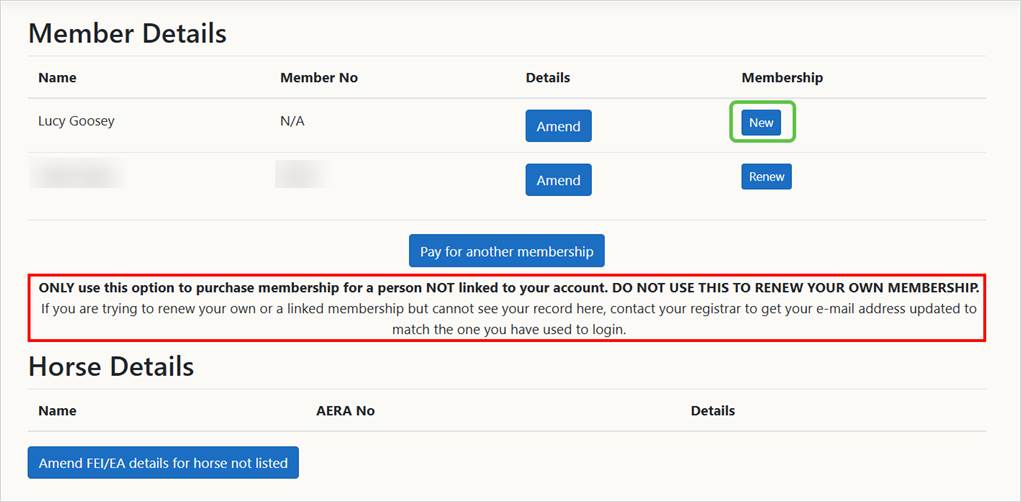
If you have an AERA Online account already (from entering endurance rides) simply login, navigate to the My Details page and select the New button to start the membership process.
-
If you don’t have an AERA Online account, select the New to Endurance button, which will navigate you to the Register page and allows you to set up your account.
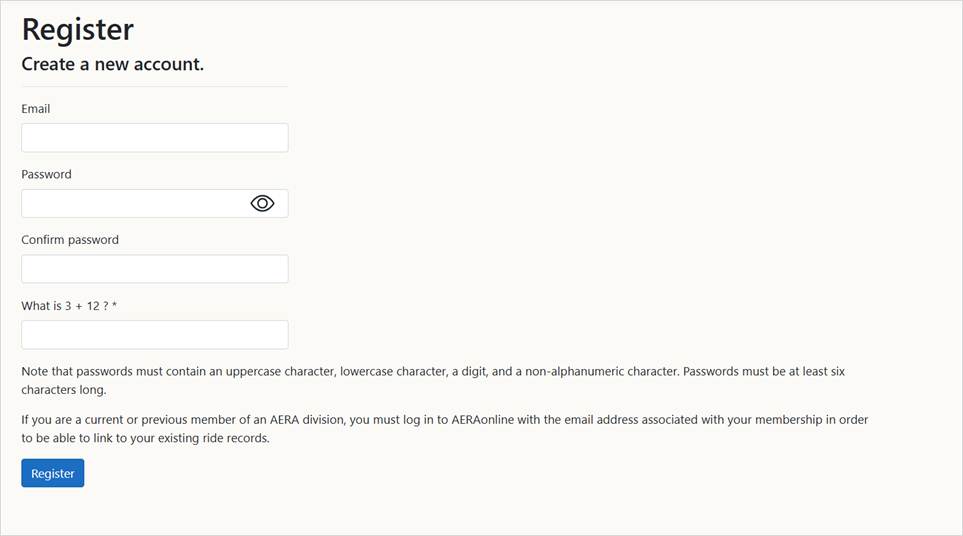
- Complete the fields on this screen and select Register to create the account using the information entered into the fields.
-
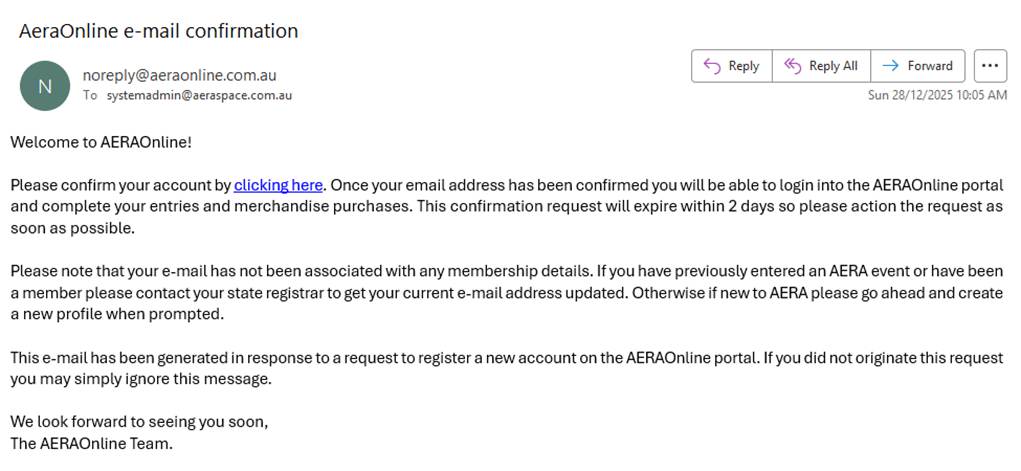
You will receive an email from AERA Online advising of the creation of the new account and requesting you to confirm the account.
-
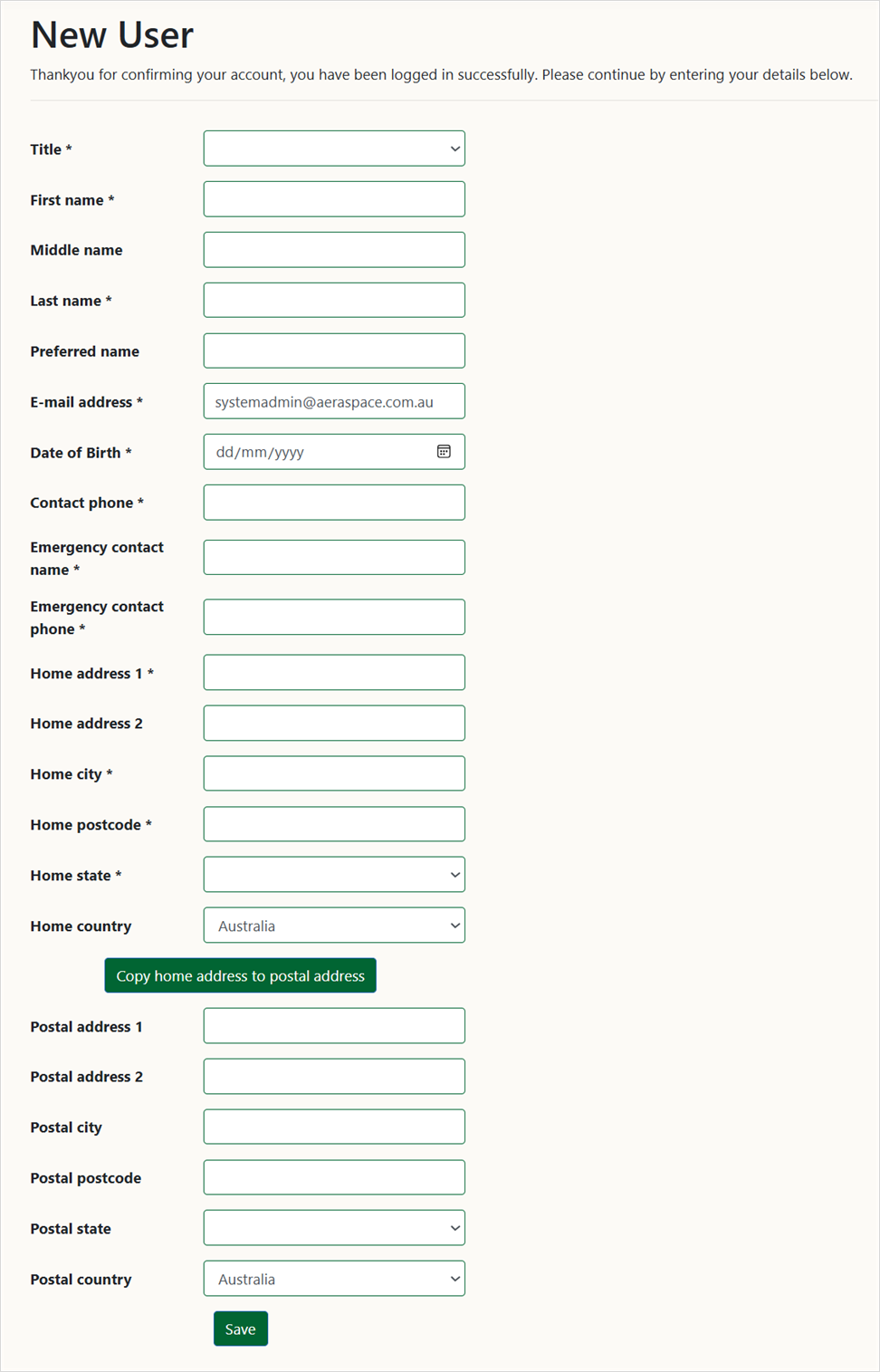
Click on the blue link to confirm the account creation, which will navigate you to the New User screen. Populate the fields and select the Save button.
-
You will be navigated to the Welcome to AERA screen where you can select what you want to do next.
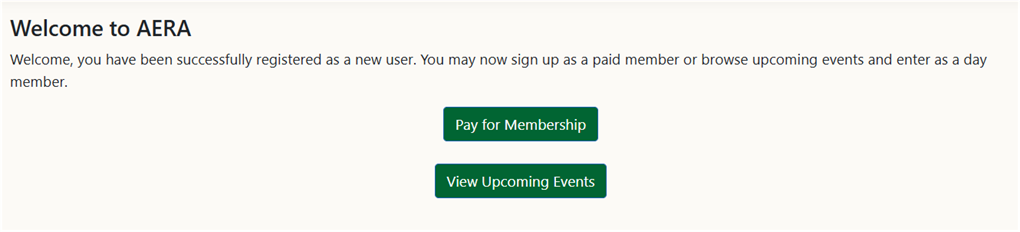
- Select the Pay for Membership button to navigate to the Membership screen or select the View Upcoming Events screen to look at what events are open for entry.
-
The Membership screen will display the membership options for the state in which you reside.
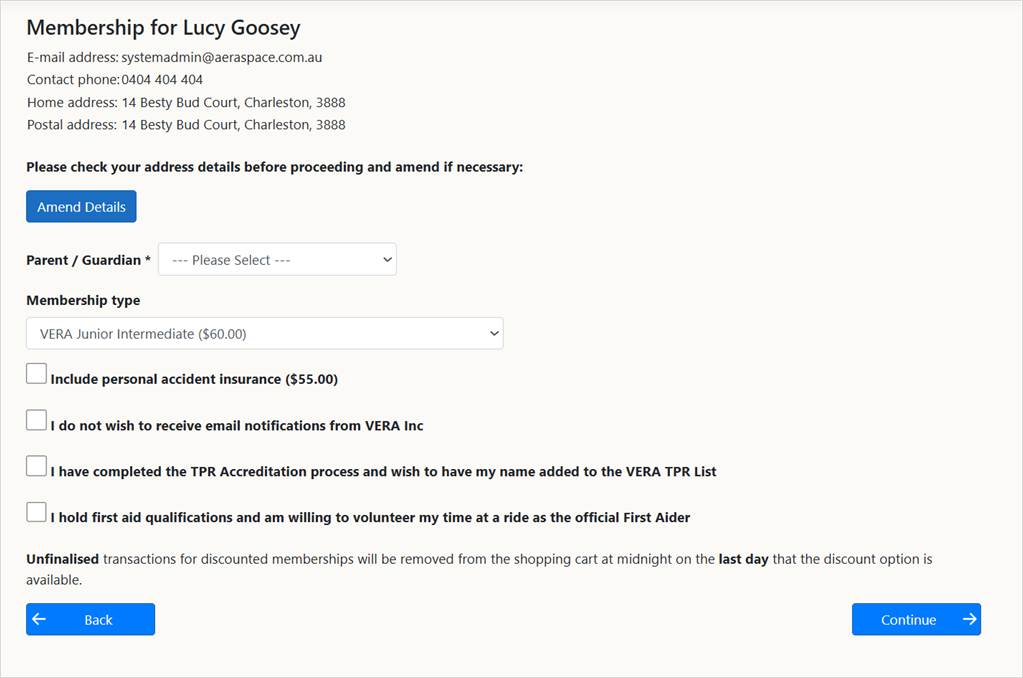 Note: If you reside in the Northern Rivers zone you will be offered a choice of NSW or Qld membership options.
-
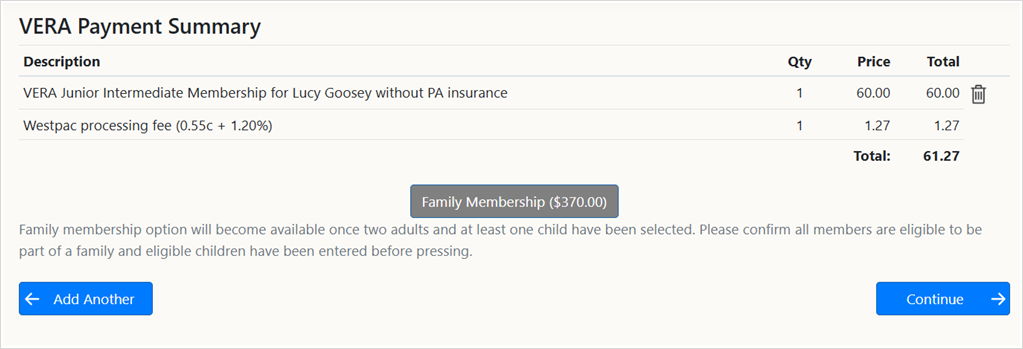
Select the Continue button and navigate to the VERA Payment Summary screen.
-
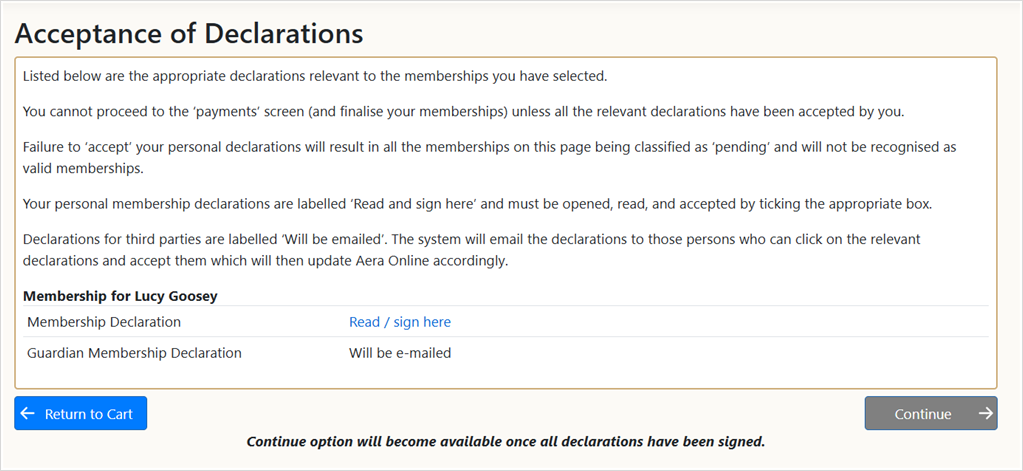
If the details are not correct select the rubbish bin icon to delete the record and return to the Member Details screen to re-commence the process. If the details are correct select Continue to navigate to the Acceptance of Declarations screen and complete the necessary declarations.
-
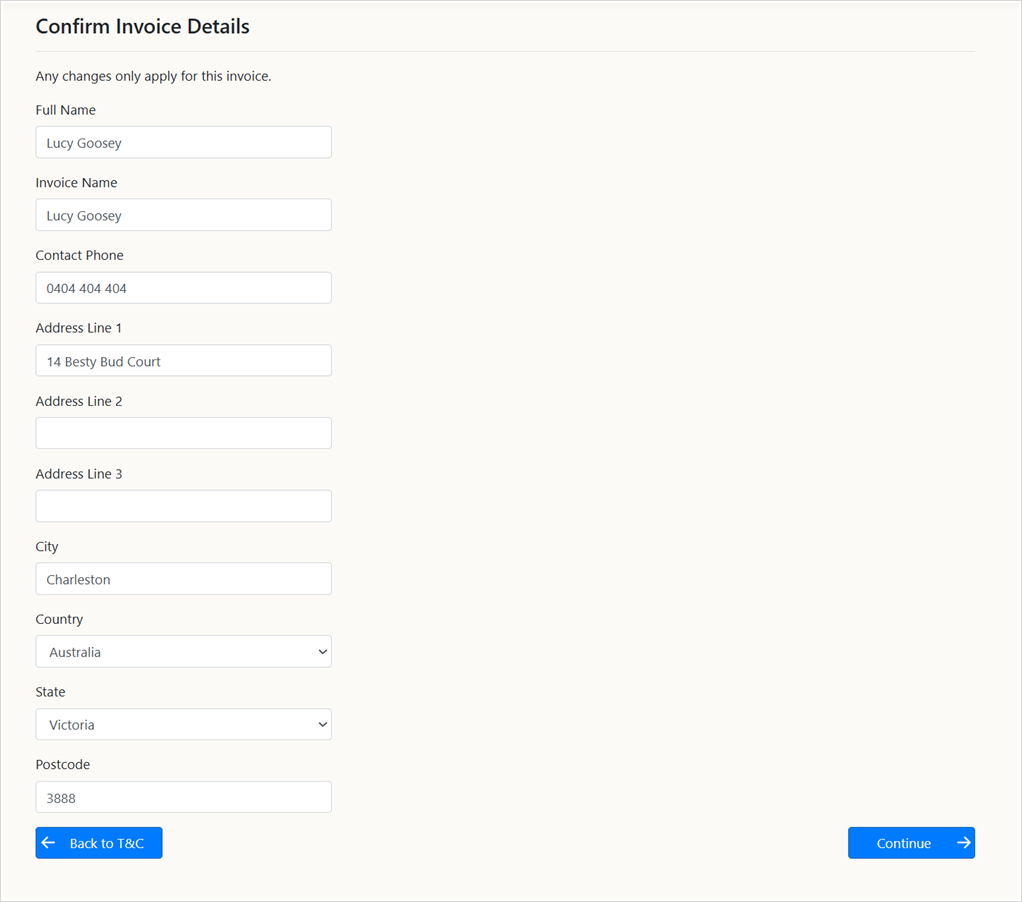
Upon selection of the Continue button you will be navigated to the Confirm Invoice Details screen where any changes can be made to this specific invoice.
-
Once any changes are made select the Continue button to navigate to the payment screen where card details can be entered and submitted. Once the payment has been confirmed the Payment Successful screen will be displayed. The invoice can be downloaded if required.
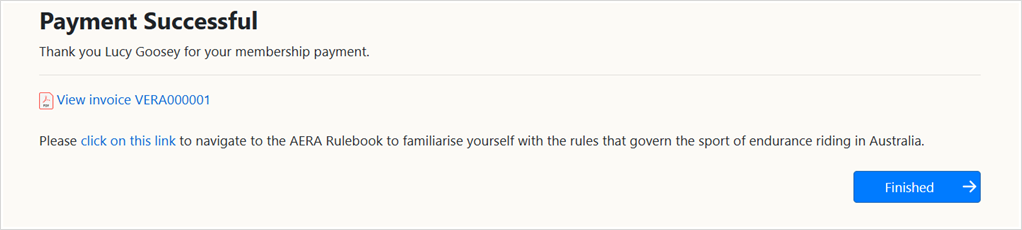
- Select the Finished button to navigate back to the Member Details screen.